Narrow results with filters
On this page
The filter row under the search box narrows a search by age, length and tone. You choose a value in a menu, and the results change at once. There is no need to press the search button.
#Where the filters are
| Tab | Filters |
|---|---|
| News, Images, Videos | Date, Published or Discovered, match, length, Sentiment |
| All | The same filters in a row labelled News filters, plus Apply to web and Open in News › |
| Websites | Date, Published or Discovered, and match |
| Web | None |

The filter row on the News tab.
- 1Date: how far back to look
- 2Published or Discovered
- 3Match: meaning, text or both
- 4Minimum words
- 5Sentiment
On a phone the row slides sideways. On the narrowest screens it hides behind a Filters button.
#The filters
#Date
The first menu sets how far back to look. Auto lets 4Search choose from your words and the subject, and the label shows what it chose, for example Auto (30 days). The fixed choices run from 1 hour to 2 years and All. You can also type a time phrase such as last week. See Choose a time window.
#Published or Discovered
Published counts the window from the date on the article. Discovered counts it from the day 4Search found the article. They are close for fresh news. Use Discovered when you want what 4Search picked up recently, including pages that were updated or re-published.
#Match
This menu decides how your words are compared with each article: by meaning, by exact text or both. See Meaning, text or both.
#Length
The length menu counts words in the text 4Search indexed for each article, the same number shown on the card. Choose Any length, or a minimum from 50+ words to 1,000+ words in steps of 50. Choose Custom range… to enter your own limits.

Custom range: type a fewest and a most. You can leave either empty.
- 1Choose Custom range
- 2Fewest words
- 3Most words
#Sentiment
The Sentiment menu filters by tone: the same bar you see on each card. The numbers run from 1, the most negative, to 10, the most positive. 5 and 6 are neutral.
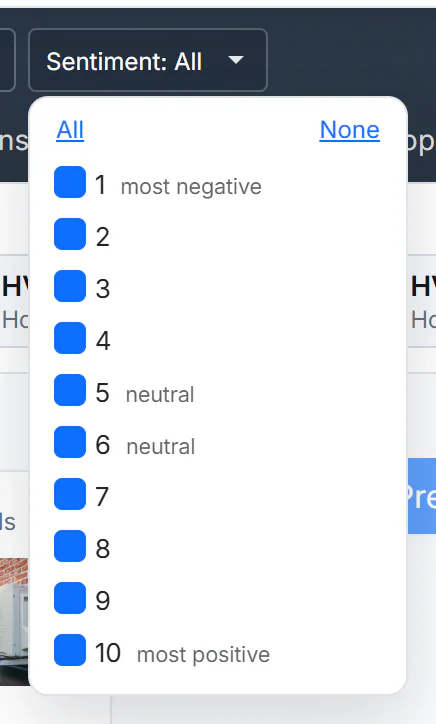
The Sentiment menu. All ten boxes are ticked by default, which means no filter.
- 1Shows what is ticked
- 2Tick all or none
- 31 is the most negative
- 410 is the most positive
- Tick the numbers you want. The button then shows them, for example Sentiment: 6, 7, 8, 9, 10.
- All ticks every number. None clears them all, which also shows everything: the button reads None (all).
- Articles without a tone bar are left out once you narrow the sentiment.
Tone is an automatic estimate of how positive an article's wording is. Treat it as a guide to the mood of coverage. See Read a result card.
#How the filters take effect
- A menu or a custom range updates the results as soon as you change it.
- The Sentiment menu waits for you to close it or pause for about a second after the last tick, so you can tick several numbers.
- A filter change searches again with whatever is in the box.
- The filters narrow the News results and, on Images and Videos, the pictures and videos. They do not change the Web column, except the date on the All tab.
- Switching tabs carries your words but not your filters. Set them again on the new tab.
To reset, choose Auto and Any length, and select All in the Sentiment menu. Or start the search again from a tab in the tab row, which carries only your words.
If a combination leaves nothing, the News column can be empty. Relax one filter, usually length or sentiment.
#On the All tab
All shows the filters in a row labelled News filters, because they narrow the News column. Two extras sit at the end of the row.

The All tab with the date set to 7 days. Apply to web is ticked, so the date also narrows the Web column.
- 1These filters are for News
- 2Apply to web: the date also narrows Web
- 3Open in News: the same search on the News tab
- 4What was added to the web search
- Apply to web is ticked by default. While it is ticked, your date range also narrows the Web results, and a note above the Web column says what was added, such as
after:and a date. Untick it to leave the Web results alone. The length and sentiment filters never apply to the Web column, and the note says so when you use them. The match menu does not apply to it either. - Open in News › runs the same search with the same filters on the News tab, including choices you have not applied yet. Use it when you want the full filter row, or News first.
#Common questions
What is the difference between Published and Discovered?
Published uses the article's own date. Discovered uses the day 4Search found it. See above.
Why did my results disappear after I set a filter?
No article matched every filter together. Loosen the length or sentiment setting first.
Do the filters change the Web results?
Only the date on the All tab, with Apply to web ticked. See The Web column.
Can I filter by site or by topic?
Yes, with Search this website on a result card, the topic menu of Full coverage, or the Websites tab. See Full coverage and Related Coverage and Find a website.